Bulletin Board
Bulletin Board



【Michaels Adventure Guide】Angel Baby Guide
2026/05/29
1."Angel Baby" system description:
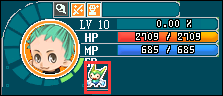
You can see the "Angel Baby" logo in the upper left corner of the interface.
Click the "Angel Baby" button or the hotkey (Ctrl+R) to open the Angel Baby.
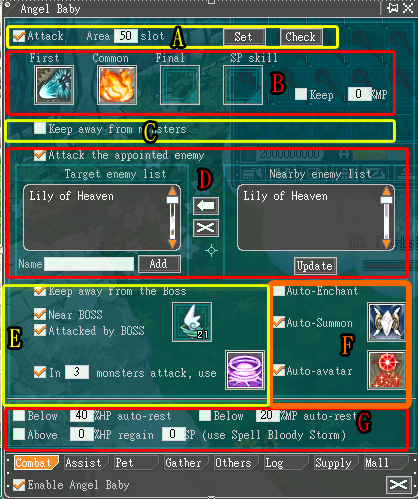
2. "Combat" function window:
A: After checking "Auto battle", the automatic function will start.
B: By placing skills, you can determine the timing to cast them during automatic attacks.
The first attack is the skill (move/spell) used in the first attack.
Commonly used attacks are skills (moves/spells) that are performed under normal circumstances.
The last attack is the last skill (move/spell) performed by the target.
The SP skill is a unique combat-type move. It can be placed in this slot when it is judged that the move can consume SP.
Reserve MP %. Fill in the number in the field and check this item. When the current MP is less than % during the attack, it will be converted into a normal attack.
C: Check to keep a certain distance from monsters.
D: You can update the targets that appear within the range and configure them to the left. After checking, the specified target will be attacked.
E: Check it. You can choose to avoid the BOSS, or use items to escape from the scene when approached or attacked by the BOSS.
F: Check to automatically use (charm skills against monsters), (summon monster skills), (clone skills).
G: Check and set the percentage of HP/MP. If you are currently at this target value, you will automatically sit down and rest, or use a move to reach full SP.
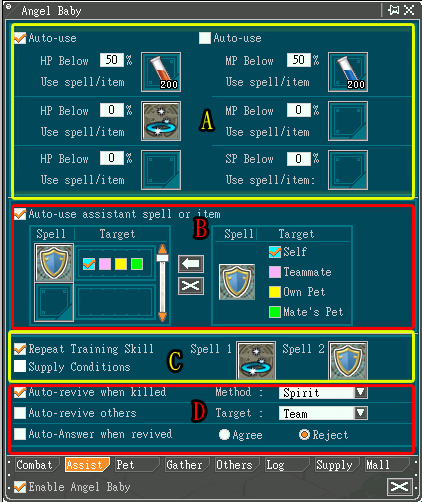
3. "Assist" function interface:
A: Check to set the conditions for HP/MP to reach the target value, and the skills or items to be used after reaching the target value.
B: Check and choose to use auxiliary skills and items on the target (self, teammates, own pets, teammates’ pets)
You need to first place the skills or items in the right column and move them to the left for configuration processing.
C: Check and configure the skill, and skill 1 and skill 2 will be cast repeatedly on the spot in turn.
D: Check and select how the character will be resurrected after death, you can choose to help nearby targets to be resurrected, and you can choose whether to agree to the processing if you are resurrected after death.
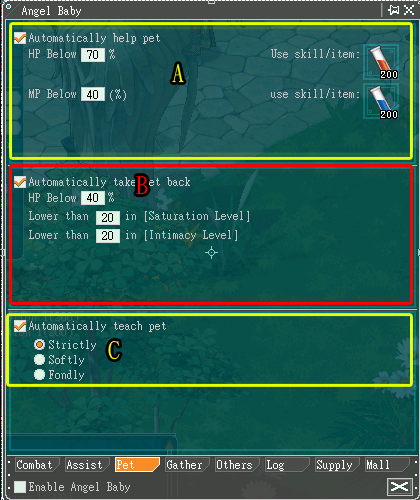
4. "Pet" function interface:
A: You can set the skills/items used to reach the target HP/MP value of your pet.
B: You can set the HP/MP, satiety, and intimacy of the pet to reach the target value to take back the pet.
C: You can choose the type of discipline after the pet is upgraded (affecting the pet’s upgrade and evolution route)
5. "Gather" function interface:
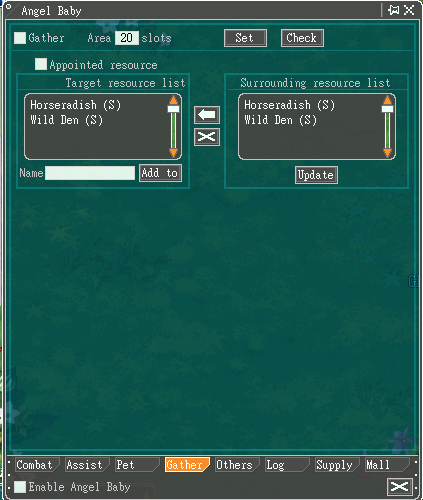
Check the automatic collection function, and you can choose to specify the target resources to be collected and configure the collection range.
6. "Others" function interface:
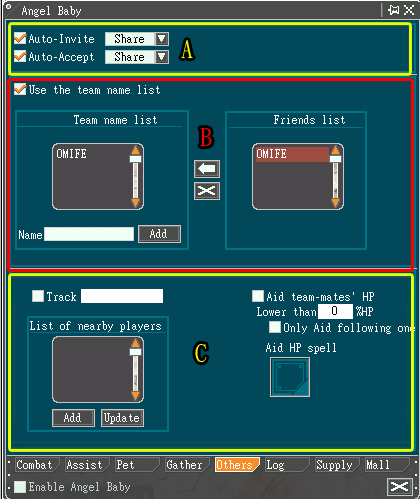
A: Check whether to automatically invite others/team or automatically accept team formation and select team settings.
B: Check and move left from the friend list to the team list, and the team will be formed according to the invitations of the players in the list.
C: Check and enter the target player's name and click to join. It will follow the target player's movement.
Check Autocast. When the character is lower than the target value, the specified HP replenishment skill will be cast.
7. "Log" functional interface:
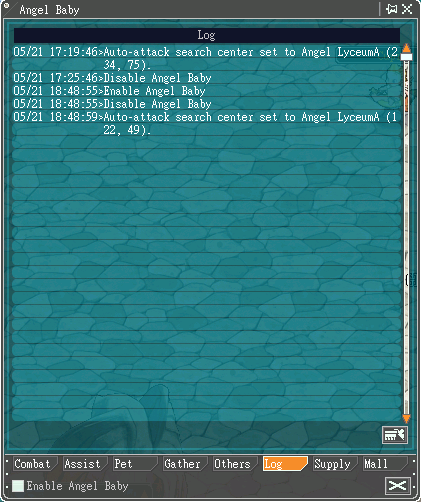
Provides query history of operation actions every time the “Angel Baby" system is opened.
8. "Supply" function interface:
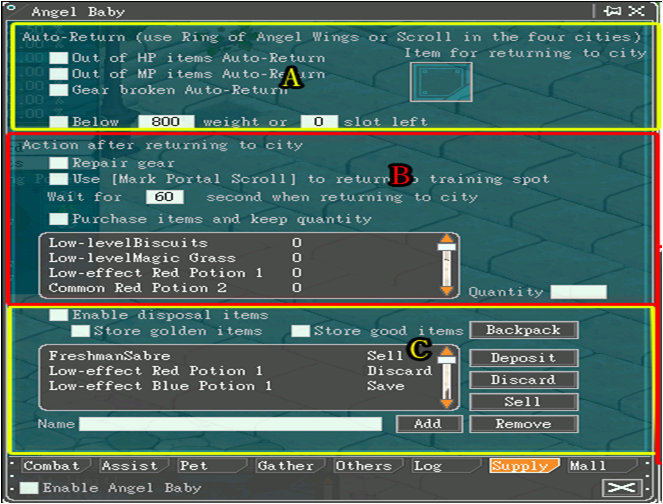
A: Check to replenish HP/MP, if there are no bullets or arrows on the body, the remaining load value or the number of backpack grids is lower than a few grids, or the equipment is damaged, it will automatically return to the city. You need to configure the return items to proceed.
B: Check the behavior after returning to the city: Repair equipment/use items and return to the practice point
And return to the city and wait for the target number of seconds to purchase a specified number of items to maintain the specified number in the backpack.
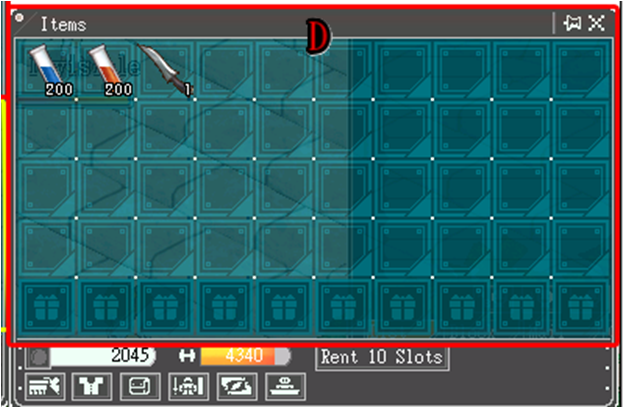
C: Check Enable Disposal Items and click the Right Backpack button
(D) backpack will appear on the right, click on the item icon and drag it to the list
Or directly enter the item name in the name field below and click Add
If it appears in the list, click on the item on the list (the text color will turn blue after selection)
Then click on the three item handling methods on the right to help define the behavior
Enable handling of items:
1. Deposit: Deposit the selected items into a bank safe.
2. Discard: Delete the selected items.
3. Sell: Sell the selected items to the NPC store in exchange for game gold coins.
4. Remove: Removes the selected item from the definition list.
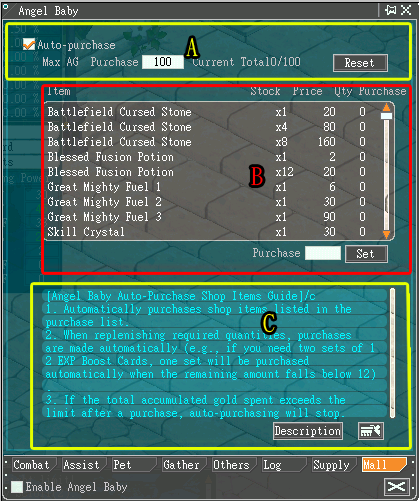
9. "Mall" functional interface
A: Check and set the purchase limit for the judgment mall item Angel Gold
The quantity*price of the items purchased must be equal to or lower than the angel gold
before the purchase operation can be carried out.
If its number is higher than the total Angel Gold, the action will not be performed.
B: Click on the item in the list (it will turn into blue text after being selected)
Then click on the purchase quantity field on the lower right, enter the number and click Set, the purchase quantity of the item will be defined.
When it is confirmed that the current quantity of items on your body is insufficient, it will be automatically purchased until the purchase amount is reached.
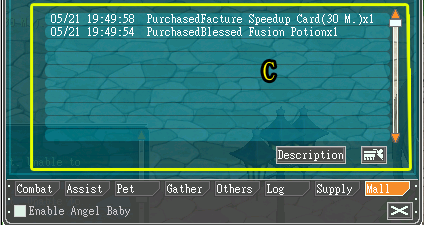
C: This is the description field for automatically purchasing items in the mall, but if you click [Description/Process] in the lower right corner, it will switch to the purchase process. You will know the purchase process performed by the Angel Baby.